Recording: Students Working Together with MS Office 365 and Blackboard

Title slide from the presentation. It says, "Students Working Together with MS Office 365 and Blackboard" Douglas College. Nathan Hall
Click on the image above to access the recording from the session.

Thank you to everyone who was able to attend the session last Wednesday on Office 365 and Blackboard. The recording can be found by clicking the title slide above. The slides can be located here.

Related resources:

OneDrive

Information​Examples​
Share PowerPoint slides in OneDrive​LLPA 1100 Week One – Design​
Share a Word document in review mode​Setting up a positive learning environment in Zoom​
Upload and share a video in OneDrive​STSU 1100: An introduction to Office 365 and Class Notebook​
Use the Microsoft OneDrive app to scan pages β€‹Example scan to PDF​
Using shared folders in OneDrive β€‹Example shared folder​
Record Video in the iOS OneDrive App β€‹Example video recording​

OneNote and Class Notebook

Information​
Overview of Class Notebook  β€‹
OneNote Class Notebook Create Distribute Review β€‹β€‹
Create and share a OneNote notebook with students β€‹β€‹
Create a Group Space with OneNote Class Notebook β€‹β€‹
Add a Class Notebook to your Blackboard course β€‹β€‹
Create Sections and Section Groups in Class Notebook β€‹β€‹
Insert Items into a Page in Class Notebook β€‹β€‹

Bookings

Information​
Create an online booking page for office hours using Microsoft Bookings​

Sway

Information​
Convert a Word document into a webpage​

Whiteboard

Information​
The new and improved Microsoft Whiteboard​

Create an online booking page for office hours using Microsoft Bookings

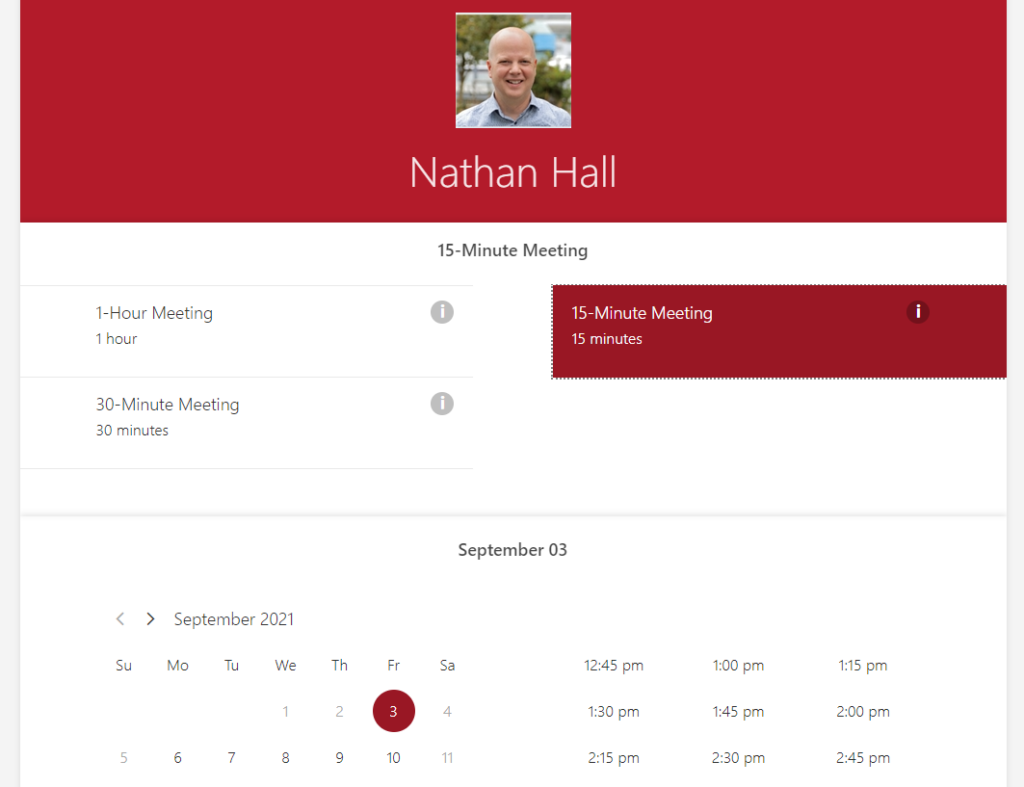
As we move back on campus, you might still want to use an online booking page for your office hours. This is a simple way for students to book a time with you in person or for meeting online. Some of you are already using a service to do this, but some of you may not be aware that Douglas College has access to Microsoft Bookings as well. This comes as part of your Office 365 package and is free for you and your students to use. It allows you to set the meeting increments (e.g. 15-minute meeting blocks) along with dates and times. I have been using this for a while now and it works well. Here is how to do that:

  1. Log into your Office 365 account on yourΒ computer.
  2. Click on the All Apps button in the bottom-left corner.
  3. Click on Bookings.
  4. Once you are in Bookings, click on Business Information to set up your booking account. Here is a 1:01 video to show you how.
  5. You will now need to set up your Office Hours. Click on Services to do that. Here is a 1:06 video on how to do that.
  6. Finally, you will need to create the page your students will use to book the meeting. Click on Booking PageΒ to customize your page. Here is a 1:31 video on how to do that.
  7. Copy the booking page link and share that with your students. I added it to the menu in Blackboard so they can find it easily. If you need a reminder on how to do that, here is a video that might help you.