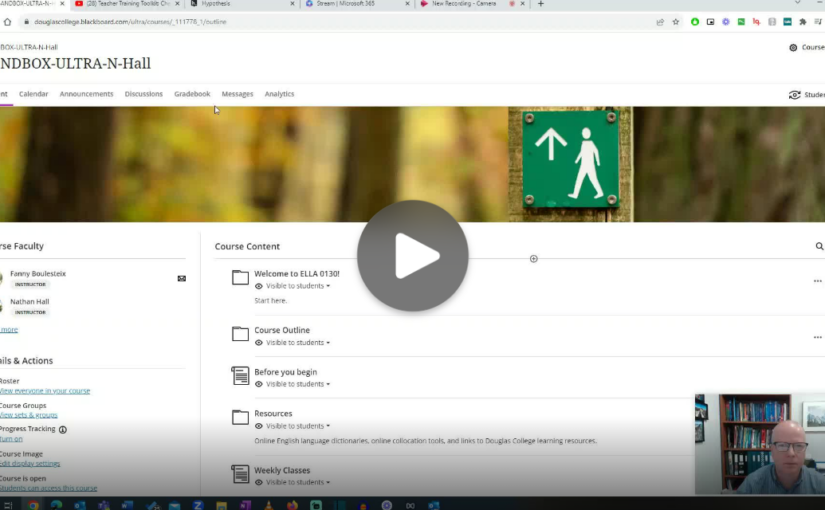
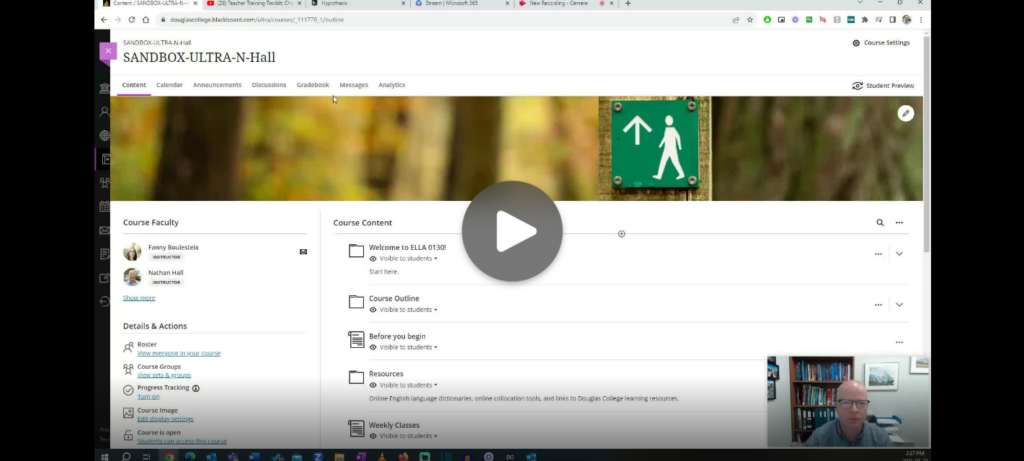
One tool you can use in Blackboard with your students is Hypothes.is, a social annotation tool that allows groups of people to annotate a website or document together. Hypothes.is has recently added the ability to annotate YouTube video transcripts. Here is a short demonstration on how that works.
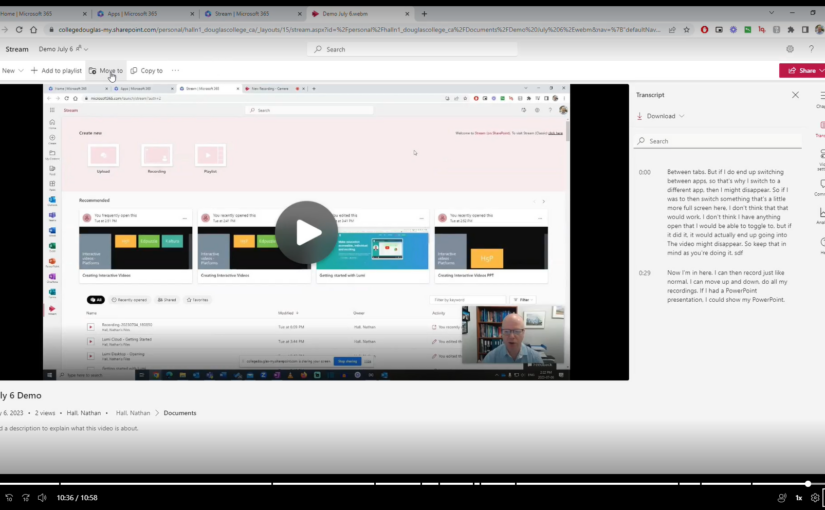
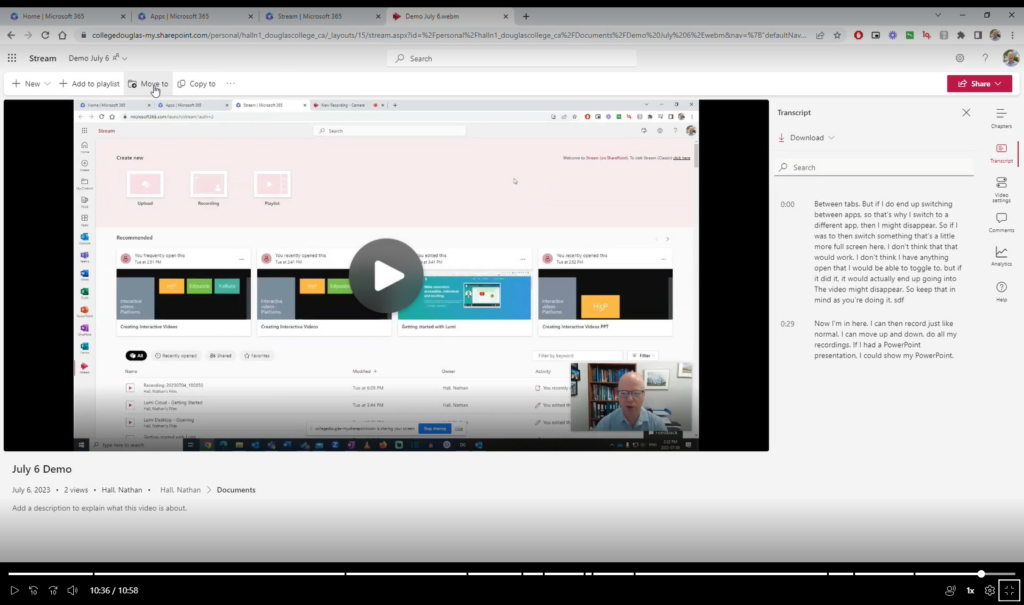
Microsoft has made some helpful updates to their video storage and streaming service Stream which has made it possible to create and share screen recordings with or without webcam videos. Here are some of the key features
No need to download any software. Simply record directly from a browser like Google Chrome.
Records your screen, audio, and your webcam.
Stores files in OneDrive. Videos are ready as soon as your are done recording.
Can have captions automatically generated with a transcript.
Can add chapters to make it easier to find sections of the video.
Can be embedded in a Blackboard page.
I find this tool really useful for giving video guidance to people who email with me questions that are easier to demonstrate than to give written instructions. I simply do a quick recording, grab the share link, and paste it in an email.
Here is a video on how to use it. You can also use the chapters to skip around.
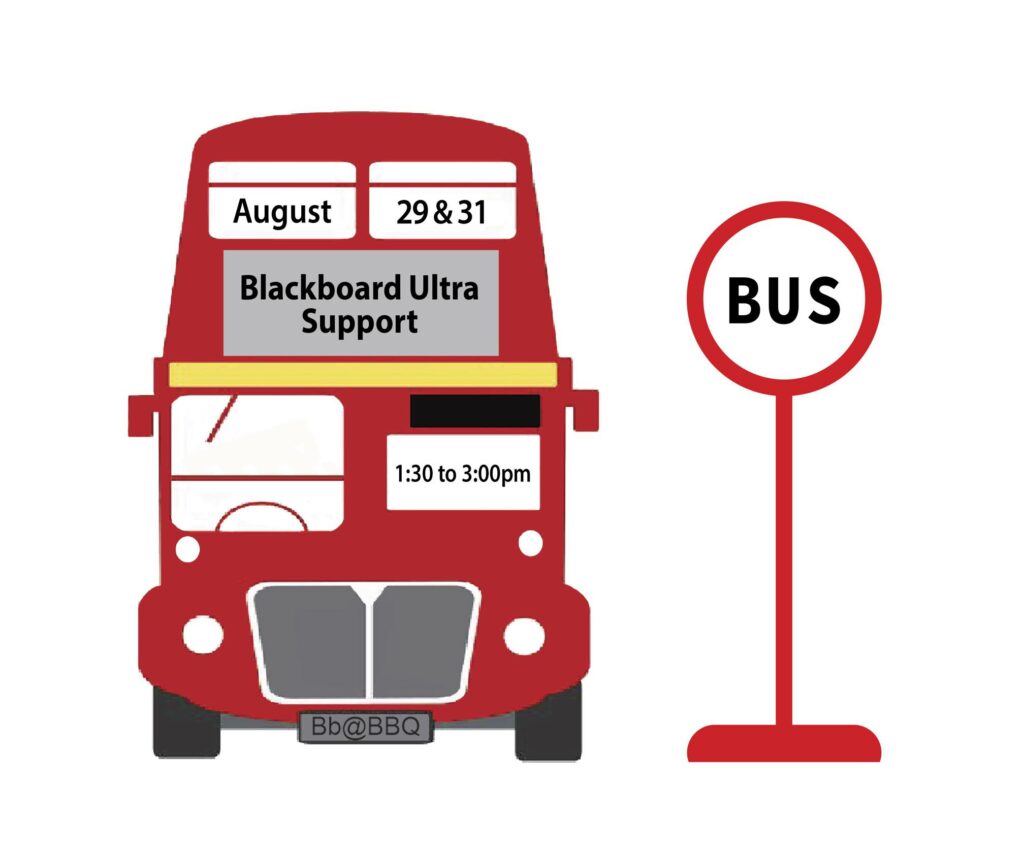
Many of you are thinking about transitioning to Blackboard Ultra in the not-too-distant future, perhaps even this Fall. To provide you with some additional help before the term starts, we will be holding a BUS (Blackboard Ultra Support)Stop event for faculty needing some specific support.
Think of it as a bit of social: Go to the BBQ, then drop by the BUS Stop for dessert and conversation with your peers about Blackboard Ultra. Have some pressing questions you need answered? Pop by! Cathy Mills (Sport Science instructor and BB Ultra Faculty Liaison) and the Learning Designer team will be there to review your questions, and give you some solid advice on how to move forward.
Here are the details:
BUS Stop: Coquitlam campus, room B2250; August 29, 1:30-3:00pm.
What’s your Take on AI? is a Douglas Educational Support Community initiative spotlighting Douglas College instructors and their thoughts on Generative AI. The views of the instructors are their own and do not necessarily represent their department, faculty, or the institution as a whole.
The goal of the series is to share perspectives and to put the conversation of generative ai, and both its real and perceived impacts, into the open.
WYTAI Episode 01: Jill Fellows, Philosophy Instructor at Douglas College
Microsoft recently made some changes to Outlook online to make it easier to create a personal booking page. This is a way for people to book time with you using your Outlook calendar. They do not see your calendar, but they will see the times you are available inside the windows of time you set up. It is a great way for you to create office hours or to have a way for colleagues to find time to meet with you.
As we start a new semester, it is time once again to think about how we are welcoming our students to the school and into our classrooms. One way to do this is through a welcome email before the class starts. You may also consider adding a link to a welcome video to give students a chance to see and hear you before the start of the term. The easiest way to do this is through uploading and sharing the video from OneDrive. This video will take you through the steps on uploading, changing the settings, and getting a shareable link. The video is an example of this since it is hosted on OneDrive.
One of the tools we have access to at Douglas College is Camtasia. Camtasia is a powerful screen recording and editing software that normally costs hundreds of dollars. While it can seem complicated to use, it really isn’t that hard to master. For most people, there are some simple things you can do to create videos for your course or workspace. Here are some short videos to take you through how to record and edit your own videos.
One of the newest additions to Blackboard at Douglas College is Padlet. You can use this with your students in so many creative ways and it is mobile-friendly as well.
Here is a video on:
how you can add padlet to your Blackboard course (Original and Ultra),
how you can create a padlet including recommended settings,
and what the different types of padlets looks like with examples.
Click the image above to watch the video.
Here are some example padlets:
Map style: Metro Vancouver Coffee Shops
Feel free to edit this one. Add your own favourite coffee shops. You can also add links and a description if you like. You are also welcome to rate those that are already posted.
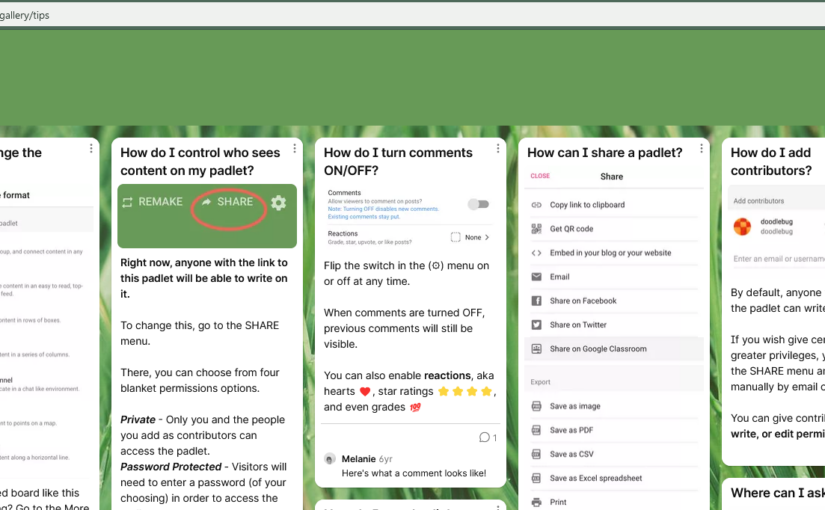
Wall format: Padlet Tips and Tricks
This is an example from Padlet. I don’t have the rights to edit it, so it is view only.
Shelf style: Better Together Conference
This is a padlet we used for the Better Together conference to gather notes and other resources from the conference. Each session has their own column.
Stream style: Blog on the best-selling product of all time
This is another example from Padlet, so it is view only.
H5P is a way of creating online interactive content for your course or website. You can create these items for free, although you can also use other content already created and adapt it for your own course.
Does is work with Blackboard?
Yes! In fact there are two different ways to add H5P modules to Blackboard. You can either embed an item or you can add it as a SCORM item. More information on what that means or how that is accomplished is in the videos below.
Is it complicated to use?
Not at all. It is very user-friendly. There are also lots of support documents and videos available online. It is a popular platform for teachers to use to create interactive elements for their classes.
Are there going to be workshops/training available at Douglas College on how to use it?
Yes. Not only that, but there will be a dedicated place at Douglas College for H5P resources. More on that to come!
What can you do with H5P?
There are so many different types of content you can create using H5P and it is being updated reguarly. Go to this page and click on any of the content types listed there to see a description and example.
How do I get started?
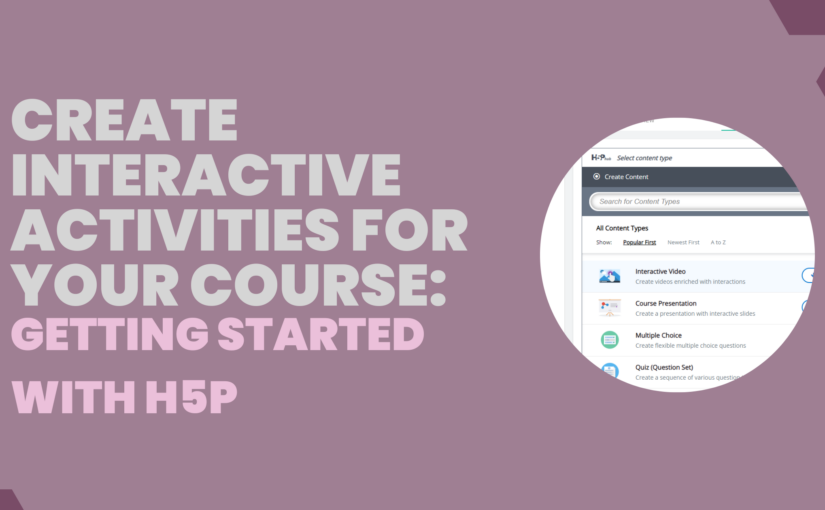
Here are two videos I created to get you started. Click on the banner images to watch the videos.
I wanted to thank Jacob Golodwitz for introducing me to Lumi and showing me how to add H5P as a SCORM item to Blackboard.
Over the past few months, you have likely heard about the worldwide paper shortage that is affecting the ability of Douglas College to procure paper for printers and photocopiers. Staff, faculty members, and students have all been asked to reduce the amount of paper they use.
Yesterday, I was having a conversation with another faculty member about the frustrations we are all encountering as we attempt to find creative ways to complete reading and writing tasks in our classes. I started sharing some of the ways I was able to reduce the amount of paper I was using in my writing class and I thought it might be good for me to write up something to share with everyone.
This post is not meant to be an exhaustive list of ideas, but simply some ways I have made this work and also some plans on what I will be trying out in the future. Feel free to share your ideas in the comments.
The most common way I have them use Forms is to display the QR code from the form on the screen at the front of the class and students then work individually or in pairs/groups to complete the task. After they are done, I share the results on the screen, and we debrief together. Students found it simple to do and I found it easy to create. A win/win.
Student notebooks📒
Instead of photocopying things for students, think about possibly displaying things on the slides at the front of the class and then have students work in a simple lined-paper notebook which they can purchase for cheap from almost anywhere. I did this quite a bit with my students. If I wanted to keep a copy of their work for providing feedback, I would use my tablet or phone to take a photo of it and then upload the photo to Blackboard so I could give them my feedback. Some students also just took the page out of their notebook and gave it to me.
Larger printouts in groups📃
Some of the best activities this past semester involved printing a simple structure (i.e., a graphic organizer) on 11×17 sheets of paper. I would only print out one per group, which usually meant I only had to print out about 5-6 sheets total. Students would do their work in groups directly on the larger paper and then I would have them post the sheets around the room for other groups to view and provide comments. I would sometimes take photos of those and post those on Blackboard for review.
Computer labs🖥️
If I needed each student to have access to a writing task, I would book a computer lab for them to do the work individually. I could then make use of Blackboard and Office 365 to create their work and have others review it.
Whiteboards🖊️
I use the whiteboards in the classroom a lot. I bring in a few pens and have students work in groups right on the whiteboard. This obviously doesn’t work for longer tasks, but it does work for shorter writing and response activities.
Blackboard Ultra🤳
As Blackboard Ultra becomes available to all faculty, students and faculty will find its more mobile-friendly approach much better for completing in-class activities. You could have groups, or even individuals, complete shorter tasks on their phones and other mobile devices using things such as discussion forums and assignments. I plan on making good use of this in the Fall.
I hope that gives you a few ideas on how you can reduce the number of photocopies and printouts you use with your students. Feel free to reach out to ask questions or for help.