Better Together – Partners in Learning

In Spring 2021, the Facilitating Faculty Online (FFO) working group organized a College-wide event made possible by efforts from instructors in each Faculty, Student Affairs & Services, Accessibility Services, the Library, the Learning Centre, Indigenous Student Services, The Training Group, ATS, and the Learning Designers, and support from many other areas in the College.

Here is a list of the sessions


Monday, May 2


Tuesday, May 3

  • 1:30-3:15 pm: Tumbled Smooth by the Rapids: Rediscovering & Reconnecting in the Wake of Turbulence – Ross Laird https://www.rosslaird.com/ @ S1812/1814 or livestreaming REGISTER here
  • 3:30-4:30 pm: Gratitude as a practice to manage uncertainty and foster wellbeing – Dylan LeRoy @ S1812/1814 or livestreaming REGISTER here


Wednesday, May 4

  • 9:00am-12:00 pm: Bandwidth Tax of Uncertainty: Helping Students Reclaim Cognitive Capacity Post-COVID and Beyond – Cia Verschelden https://bandwidthrecovery.org/ @ S1812/1814 or livestreaming REGISTER here
  • 1:00-2:00 pm: Douglas College Climate Action Panel – SMT, S&T, Facilities, and Student panelists @ s1812/1814 or livestreaming REGISTER here
  • 2:30-4:00 pm: Teaching with Technology Café – World cafe style event with Faculty, Library, and CEIT presenters @ NW Cafeteria REGISTER here
  • 4:00-6:00 pm: Wine and Cheese Reception @ NW Library REGISTER here


Thursday, May 5

  • 9:00-9:45 am: First Steps with a COIL Project: Considerations and Preparation – Janice Sestan @ COQ C1008 REGISTER here
  • 10:00-10:45 am: PechaKucha Morning – Jill Fellows, Lawrence Becker, and Sandra Polushin/Justine Charrier present their topics in PechaKucha style @ COQ C1009 REGISTER here
  • 11:00-11:45 am: Panel: Student Research in Health Sciences with panelists: Mike Miller, Patricia Visosky, Ivanna Smetanska, and Tracey McVey @ COQ C1008 REGISTER here
  • 12:30-2:00 pm: Frameworks for Going Open: Human-Centred Futures for Higher Education – Robin DeRosa and Rajiv Jhangini – https://robinderosa.net/about/ https://thatpsychprof.com/ on Zoom (online) REGISTER here
  • 2:00-3:00 pm: Concurrent sessionsvia Zoom (online)
    1. We Know What You’ve Done There: Writing Tutors respond to instructors’ assignment guidelines – Holly Salmon & Peer Tutors REGISTER here
    2. Student Voices on Online Learning – Sandra Polushin & Students REGISTER here
  • 3:30-4:30 pm: Lessons Learned and Paths Forward – Senior Management Panel – @ COQ Boardroom and via Zoom (online) REGISTER here

Friday, May 6

Plus…..refreshments, book draws, Better Together radio programs, and more!

Full information including speaker bios, updates, and locations can be found on DC Connect via this link:
https://collegedouglas.sharepoint.com/sites/dcconnect/department_faculties/academicsupport/ats/Pages/Better-Together-Partners-in-Learning.aspx

This College-wide event is being made possible by efforts from instructors in each faculty, Student Affairs & Services, Accessibility Services, the Library, the Learning Centre, Indigenous Student Services, The Training Group, ATS, and the Learning Designers, and support from many other areas in the College. We recognize and appreciate the following groups/people for their funding and support of the Better Together conference:

  • College-wide Faculty Development Fund
  • Student Affairs & Services
  • Learning Resources’ Professional Development Fund
  • Vice President, Academic & Provost
  • Foundation and Alumni Relations
  • Human Resources


Fixing a problem with YouTube videos in PowerPoint slides

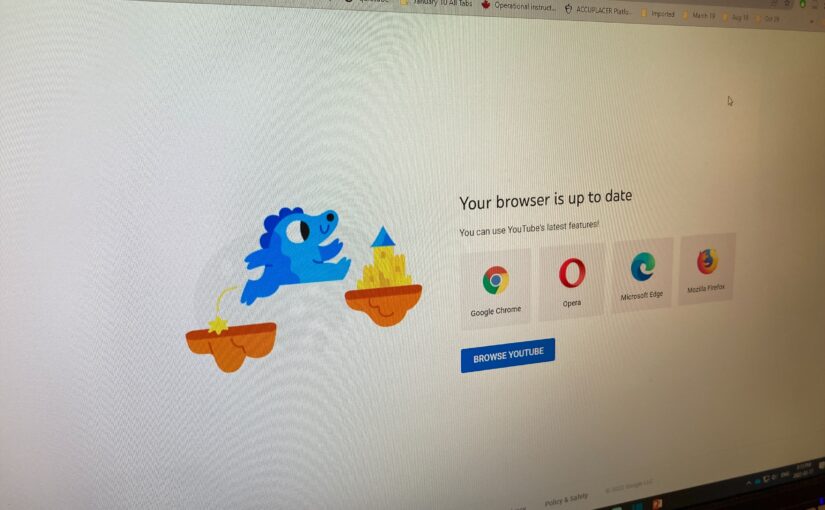
Uh oh. Why is the YouTube link not working? (See below)

If you ever use YouTube videos in your PowerPoint slides, you may have run across the screen above recently. It is a documented problem with the desktop version of PowerPoint (i.e. PowerPoint installed on your computer) and YouTube links. If you use try to click on a link in your slides while in the desktop version of PowerPoint, the link takes you the screen pictured above.

There are two main ways to solve this. Both are pretty easy to do, but one has a distinct advantage over the other. Watch the video below to learn more (bonus: learn how I have students do their presentations in my classes when they have PowerPoint slides).

I should also thank Michelle Henderson for alerting me to this issue and one of the fixes for this problem.

Recording audio for PowerPoint slides and exporting as a video (Mac)

One of the simplest ways of recording a video of your PowerPoint slides is to insert audio into each slide and then have that audio automatically play when viewed. You can then export the slides and audio as a video. Here is how to do that.

  1. Make sure you have the PowerPoint app installed on your Mac. If you want to know how to do that for free, read these instructions.
  2. Open or create a presentation and go to the first slide. Click on Insert in the menu bar.​
  3. Click on Audio and then Record Audio.​
  4. You might need to give permission for PowerPoint to use your microphone. Click OK
  5. Click on the record button to start recording
  6. Click on the stop button to stop recording
  7. Click on Insert to add the audio to your slide
  8. Click and drag the speaker icon to somewhere on the slide.​
  9. Click on Playback in the menu bar and then click on the dropdown menu next to Start and choose Automatically.​
  10. Once you have recorded audio for all of your slides, click on File and then Export.
  11. Next to File Format, choose MP4. Next to Quality, choose Internet Quality. Click on Export.
  12. Make sure you save your presentation as well. If you save it to your Douglas College OneDrive account, you can also share that presentation.

Here is an example of a shared PowerPoint presentation with audio recording for each slide. It also shows you visual steps of what is shared above.

Title slide that has the text recording audio for your powerpoint slides mac
Click on the image above to watch an example recording using this method.

Recording audio for PowerPoint slides and exporting as a video (Windows)

One of the simplest ways of recording a video of your PowerPoint slides is to insert audio into each slide and then have that audio automatically play when viewed. You can then export the slides and audio as a video. Here is how to do that.

  1. Make sure you have the PowerPoint app installed on your Windows computer. If you want to know how to do that for free, read these instructions.
  2. Open or create a presentation and go to the first slide. Click on Insert in the menu bar.​
  3. Click on Audio and the Record Audio.​
  4. Type in a name (optional) and then click on the record button to start recording.​
  5. When you are finished recording for that slide, click on the stop button and then OK.​
  6. Click and drag the speaker icon to somewhere on the slide.​
  7. Click on Playback in the menu bar and then click on the dropdown menu next to Start and choose Automatically.​
  8. Once you have recorded audio for all of your slides, click on File.​
  9. Click on ExportCreate a Video, choose HD (720p), and the Create Video.​
  10. Make sure you save your presentation as well. If you save it to your Douglas College OneDrive account, you can also share that presentation.

Here is an example of a shared PowerPoint presentation with audio recording for each slide. It also shows you visual steps of what is shared above.

Title slide that has the text recording audio for your powerpoint slides windows
Click on the image above to watch an example recording using this method.

Install Microsoft Office 365 on your Windows or Mac for free

Office 365 logo

As part of our Douglas College access to Microsoft Office 365, you can install the full office programs (Word, PowerPoint, Excel, etc.) on your computer for free. This is available to everyone in the college with a Douglas College email: staff, faculty, and students. Once you install these programs on your computer, you can activate the full program by logging in with your Douglas College credentials (email and password). This opens up the full features of each program instead of the limited features of the online versions.

Installing Microsoft Office 365 on your Mac

Click on the image above to watch the video on how to install the office apps on your Mac

Installing Microsoft Office 365 on your Windows computer

Here is how to download and install Office 365 on your Windows computer.

  • Log into your Douglas College Office 365 & Email.
  • Click on the Install Office button in the top-right corner and choose Office 365 apps
  • Run the install that downloads.
  • When prompted, use your Douglas College email and password to log in.

Recording: Students Working Together with MS Office 365 and Blackboard

Title slide from the presentation. It says, "Students Working Together with MS Office 365 and Blackboard" Douglas College. Nathan Hall
Click on the image above to access the recording from the session.

Thank you to everyone who was able to attend the session last Wednesday on Office 365 and Blackboard. The recording can be found by clicking the title slide above. The slides can be located here.

Related resources:

OneDrive

InformationExamples
Share PowerPoint slides in OneDriveLLPA 1100 Week One – Design
Share a Word document in review modeSetting up a positive learning environment in Zoom
Upload and share a video in OneDriveSTSU 1100: An introduction to Office 365 and Class Notebook
Use the Microsoft OneDrive app to scan pages ​Example scan to PDF
Using shared folders in OneDrive ​Example shared folder
Record Video in the iOS OneDrive App ​Example video recording

OneNote and Class Notebook

Information
Overview of Class Notebook  ​
OneNote Class Notebook Create Distribute Review ​​
Create and share a OneNote notebook with students ​​
Create a Group Space with OneNote Class Notebook ​​
Add a Class Notebook to your Blackboard course ​​
Create Sections and Section Groups in Class Notebook ​​
Insert Items into a Page in Class Notebook ​​

Bookings

Information
Create an online booking page for office hours using Microsoft Bookings

Sway

Information
Convert a Word document into a webpage

Whiteboard

Information
The new and improved Microsoft Whiteboard

Better Together: Partners in Learning​ – Call for presenters, facilitators, and panelists

A multicoloured mural that says, "Together"
Photo by Adi Goldstein on Unsplash

Better Together: Partners in Learning​

May 2 to 6, 2022​

A College-wide themed week of learning and peer-sharing called Better Together: Partners in Learning is being organized by the Facilitating Faculty Online (FFO) and Academic Technology Services (ATS)

Call for DC Presenters, Facilitators and Panelists

Can you contribute as a panelist, presenter, facilitator, member of a round table?​

How long: 30 minutes to 3 hours (your choice)​

Format: workshop, keynote, panelist, facilitator ​

Delivery mode: in-person, virtual, hybrid (ATS supporting virtual delivery) ​

Audience: Students, faculty, and staff from across the college​

Topics: From Engagement to Assessments to Wellness: all organized into 3 streams:

Nuts & Bolts: Online teaching & learning tips, Navigating digital tools ​

Lived Experience of What Works: Pedagogical case studies, Experiential or hands-on learning ​

Reflecting on Values: Humanizing online learning, Indigenization, Anti-racism, Authentic assessment, Mental health, Open education 

If you are interested or thinking about it​

Please submit by February 18, 2022

If you are interested in contributing, please​

 complete this form or ​

reply using this email

If you want to brainstorm on a topic, reach out to your FFO rep:​

CBA: Shannon Cox (coxs@douglascollege.ca) ​

HS: Rhonda Benke (benker@douglascollege.ca)​

HSS & LLPA: Nathan Hall (halln1@douglascollege.ca)​

ACS: Sandra Polushin (polushins@douglascollege.ca)​

S&T: Cathy Mills (millsc1@douglascollege.ca)​

TTG: Azi Asadi (asadia@douglascollege.ca)​

Setting up your Blackboard Grade Center

I was starting to set up my Blackboard course for next semester and I thought it might be good for me to take you through how I set up my Blackboard Grade Center before I open the course to my students. I recorded a series of four videos to take you through each step and I posted them below. Please let me know if there are any other videos you would like recorded on using the Grade Center and I can work on adding those to this list.

Click on the images below to watch each video.

(5:38)

(7:14)

(2:18)

(12:32)